Real onboarding screenshots

See How WhatsApp Coexistence Onboarding Works

A visual walkthrough showing how an eligible WhatsApp Business app number can be connected to Meta's Business Platform and WebWMS2U—while the business continues using the mobile app.

Before you begin

What to expect during setup

The onboarding process moves between Meta's browser-based Embedded Signup and the WhatsApp Business app. The exact screen order or wording may change as Meta updates the process.

Authorised access

You review the business and WhatsApp permissions before approving the connection.

Business app retained

The mobile app explains that you can continue using WhatsApp Business after connecting.

History choice

You decide whether to share supported recent chat history with the Business Platform.

Confirmation

Both Meta and the Business app show confirmation when the connection succeeds.

Visual walkthrough

The Coexistence connection process

These screenshots are from a completed WebWMS2U Coexistence onboarding test.

WhatsApp Business app

Connect to the Business Platform

The WhatsApp Business app presents the Business Platform connection screen. It confirms that you can keep using the app after connecting.

  • Up to six months of supported one-to-one chat history may be shared.
  • Group chat history cannot be shared through this process.
  • A notice about Meta's secure service may appear in individual chats.

Review the information and tap Connect to the Business Platform.
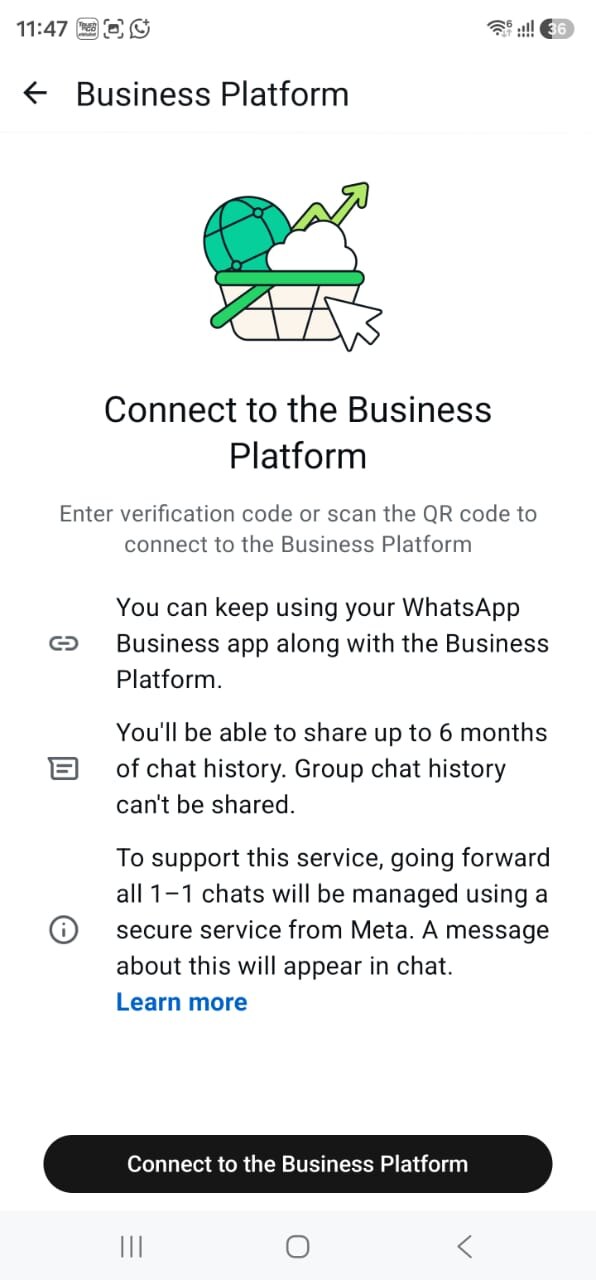
WhatsApp Business app screen explaining connection to the Business Platform
Select the screenshot to view full size
Select either screenshot to view full size
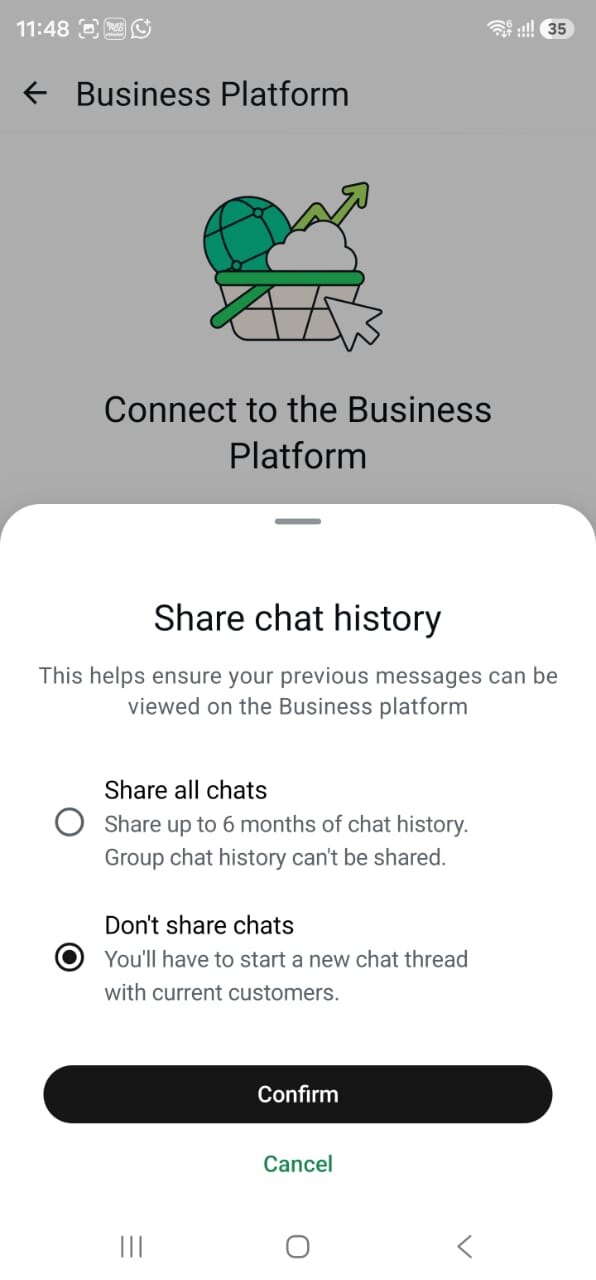
Choose chat history

Decide whether to share supported chat history

You will be asked whether previous messages should be made available to the Business Platform.

Share all chats

Shares up to six months of supported one-to-one history. Group chat history is excluded.

Don't share chats

Previous history will not be shared, so current customers may appear as new conversation threads on the platform.

Choose the option that suits your continuity and privacy needs, then tap Confirm.

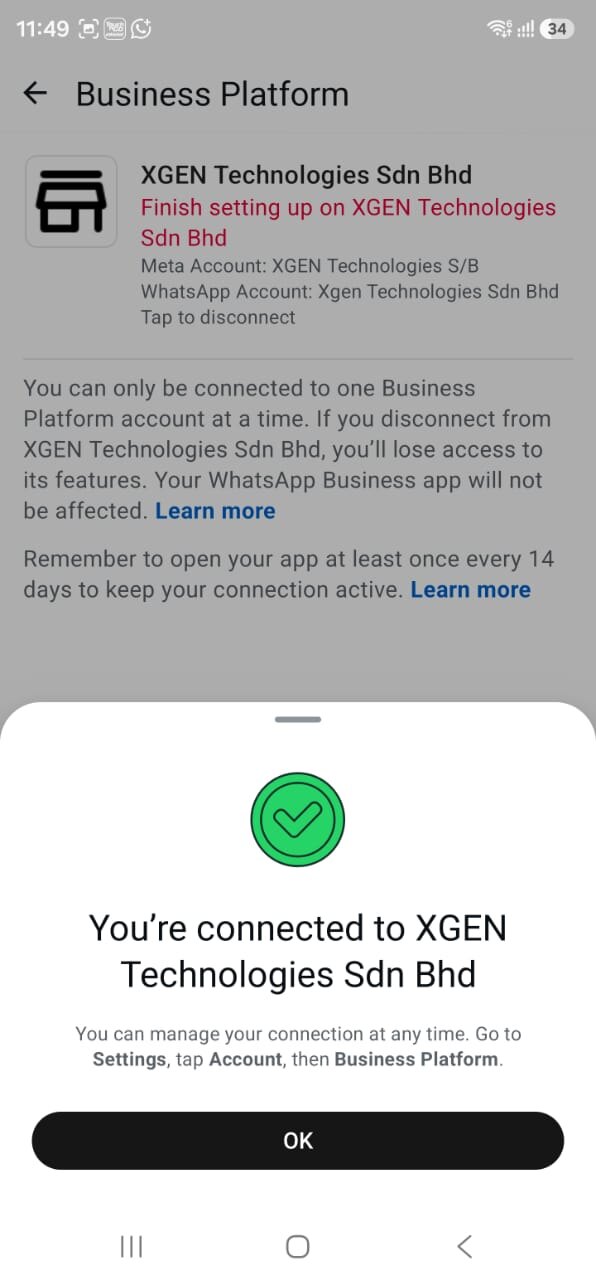
Mobile confirmation

Confirm the Business Platform connection

The app confirms which business is connected. You can later manage the connection under Settings → Account → Business Platform.

Keep the connection active
The example screen instructs the user to open the WhatsApp Business app at least once every 14 days. It also states that only one Business Platform account can be connected at a time.
WhatsApp Business app confirmation that the business is connected
Select the screenshot to view full size
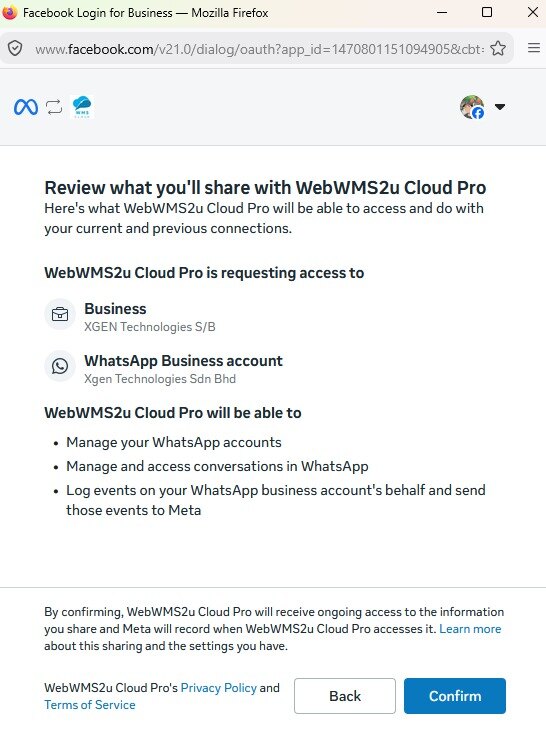
Meta screen reviewing business and WhatsApp permissions shared with WebWMS2U
Select the screenshot to view full size
Meta permissions

Review what is shared with WebWMS2U

Meta shows the selected Business and WhatsApp Business account, followed by the access being requested.

Read the information carefully and confirm only when the displayed business, WhatsApp account and service name are correct.

WebWMS2U never needs your Facebook or WhatsApp password. Authentication takes place on Meta's own login and permission screens.

Finish onboarding

Complete the Meta connection

Meta displays a success screen when the account connection has been accepted.

Depending on your Meta account, Meta may review the business for compliance and contact you if it detects an issue.

Connection completed

Select Finish to return to WebWMS2U, where the connected number can be verified and tested.

Meta confirmation that the WhatsApp account is connected
Select the screenshot to view full size
After onboarding

What happens next?

A successful connection is followed by practical testing before production use.

Verify the number

Confirm the correct WhatsApp number and business account appear in WebWMS2U.

Test outbound messaging

Send an approved test message through the Cloud API connection.

Test app replies

Confirm staff can continue replying from the WhatsApp Business app as expected.

Enable workflows

Configure the selected campaigns, templates, keywords, webhooks or API integrations.

Eligibility and interface notice: Coexistence availability is controlled by Meta and depends on current account, number, country, app-version and policy requirements. Meta may change the wording, layout or order of these screens. The screenshots on this page are an actual example and may not exactly match every onboarding session.
Common questions

Setup guide FAQ

The Coexistence onboarding screen specifically states that eligible users can keep using the WhatsApp Business app alongside the Business Platform.

The illustrated process provides both “Share all chats” and “Don't share chats” choices. Consider operational continuity and your privacy obligations before deciding.

The shown Meta screen states that group chat history cannot be shared through this process.

No. You authenticate and review permissions directly through Meta's own Embedded Signup screens. Do not send your password to WebWMS2U or any third party.

Ready to check your Coexistence eligibility?

Tell us about your existing WhatsApp Business number and how your team uses it. We can guide you through the appropriate setup.