How WhatsApp ordering works
See how to configure your shop, guide a customer through an order, verify payment and keep staff informed.
Set up your shop before taking the first order
- Arrange Ordering activation. We confirm your Ordering subscription and outlet allowance. Ordering and Booking subscriptions are separate.
- Create the shop profile. Add the name, entry keyword such as ORDER, optional logo and session timeout. Keywords are matched without case sensitivity.
- Build the catalogue. Create menus and categories, products with prices and pictures, then modifier groups such as size or extras. Start with a small menu and expand after testing.
- Configure each outlet. Assign a menu, pickup address, enquiry phone, delivery details and fixed fee. Choose fulfilment and payment methods, then email and/or WhatsApp notification recipients.
- Connect and test the channel. Choose an owned Meta number or Personal WhatsApp device. Configure approved Meta templates where required. Preview first, then test live customer and merchant messages.
- Start the shop and outlets. Check every active branch has a usable menu and payment/fulfilment configuration. Keep a staff member responsible for acceptance and payment verification.
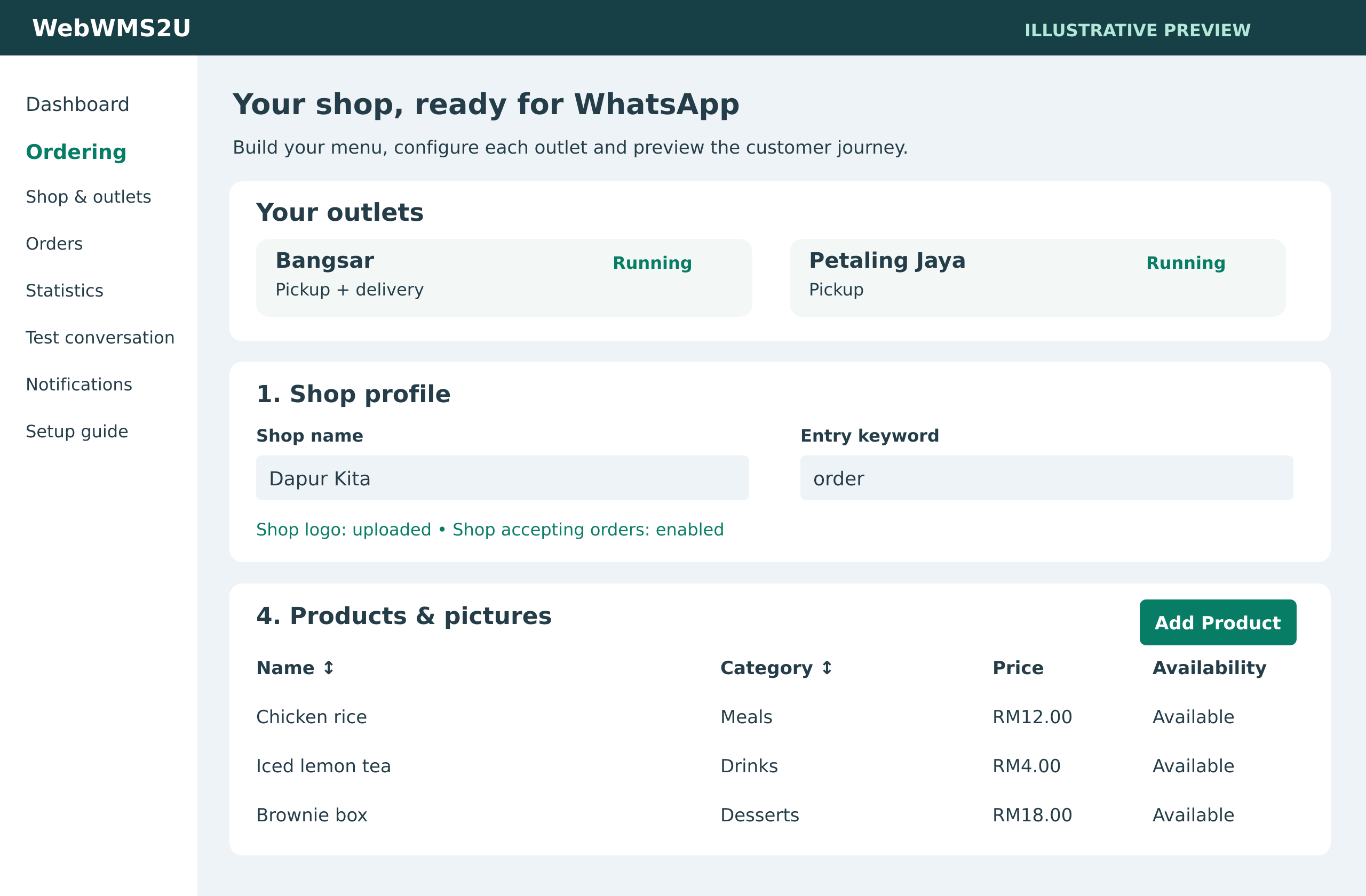
A customer journey with simple instructions
Customers reply with an item number or exact product name. They can browse a category, choose ALL, move between pages, inspect their cart and go back to change a choice. Instructions appear beneath the chatbot replies so the next action stays visible.
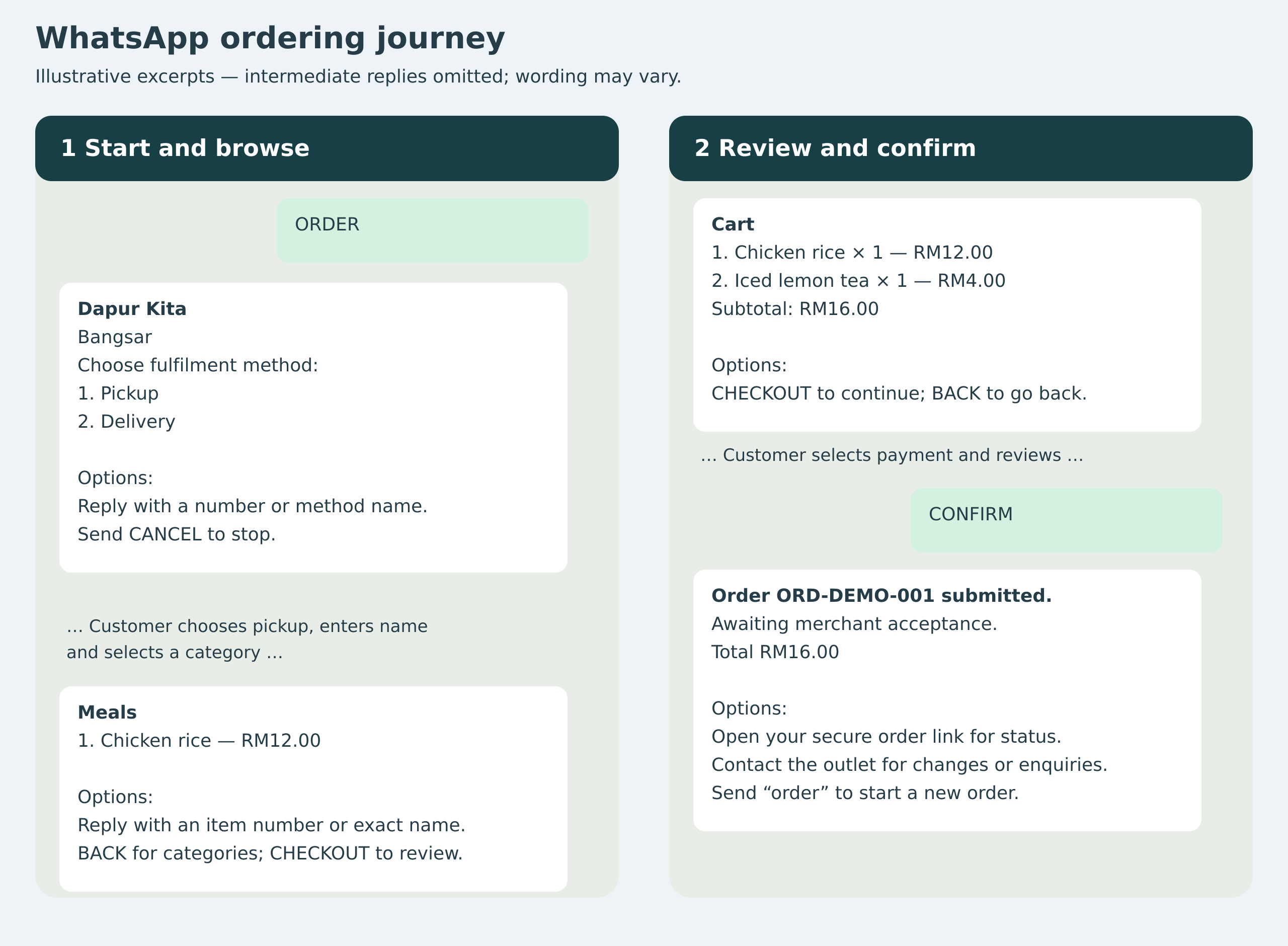
What happens at each step
| Step | Customer experience | Business control |
|---|---|---|
| Start | Send ORDER; see the optional logo, shop and outlet choices. | Start/pause the shop and individual outlets. |
| Details | Choose pickup/delivery; provide name and address where needed. | Reliable sender phone is captured; manual fallback is available. |
| Browse | Select category/ALL and browse up to 10 products at a time. | Categories, availability, descriptions and prices are merchant-managed. |
| Select | View selected product picture; enter quantity and extras. | Modifier minimum/maximum selections are checked. |
| Confirm | Review items, fees and details before CONFIRM. | Item, price and option snapshots are saved. |
| Accept | Receive acceptance or rejection with a reason. | Staff review availability and address before committing. |
| Pay | Receive QR after acceptance and upload proof in a secure browser link. | Staff verify bank funds; proof alone does not mark Paid. |
| Fulfil | Receive Preparing, Ready/Out for delivery and Completed updates. | Order status and payment status remain separate. |
Manage orders from your desk or your phone
The dashboard keeps the latest orders first and lets staff search customer name, contact number, order reference and status. Each order opens as a readable summary. The merchant’s private management link offers mobile actions, while authorised WhatsApp commands provide another route for staff who prefer chat.
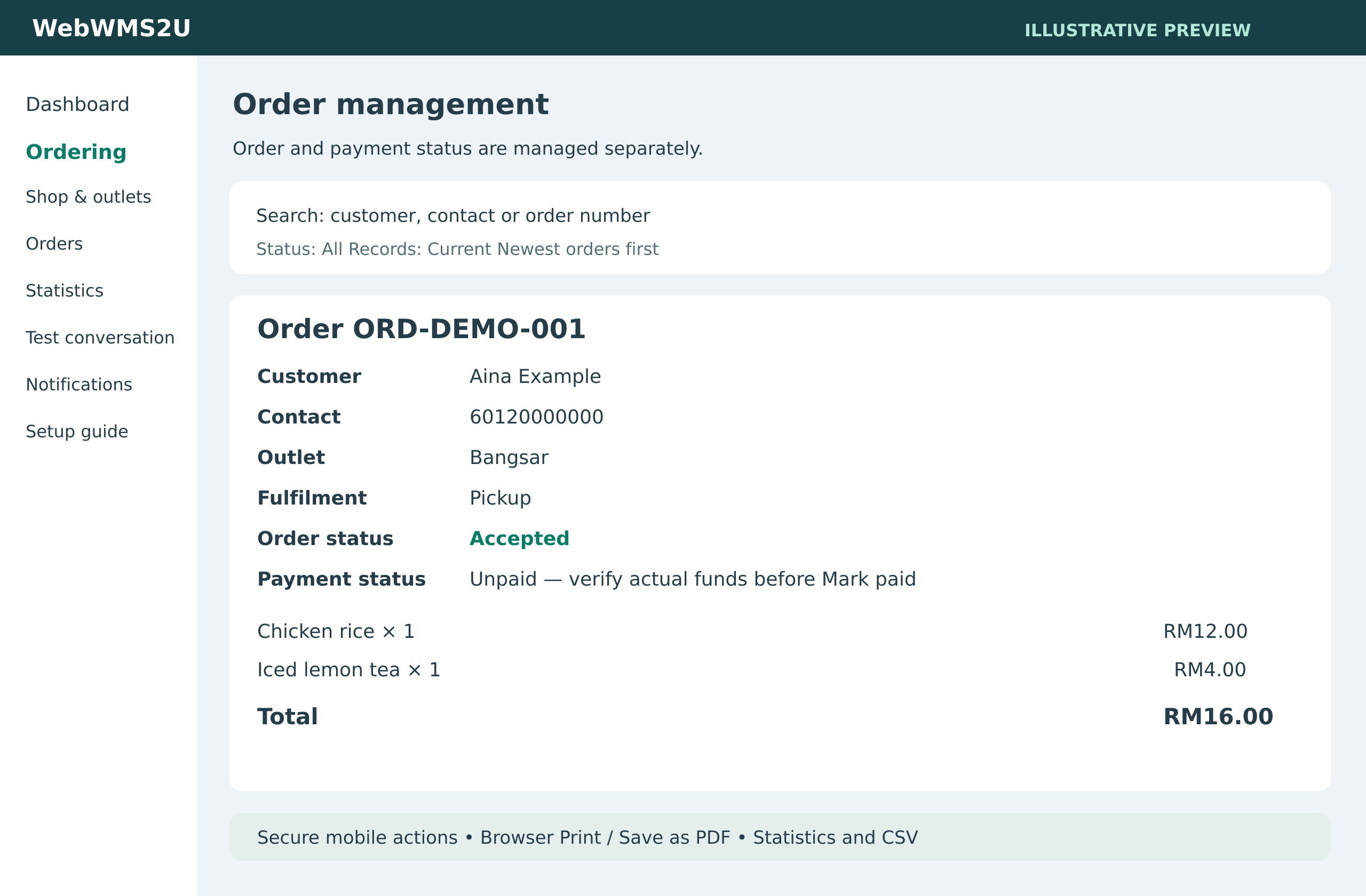
Print / Save as PDF uses your browser’s print dialog. It is an order summary, not a tax invoice or proof of payment. Private merchant links expire after seven days; staff can use the authenticated dashboard afterwards.
Use reporting without losing the order history
Statistics cover seven local days, a calendar month or a calendar year. Counts use orders created within the selected period and their current status, including completed, cancelled and rejected orders. TEST orders are excluded by default. Paid completed value is shown separately; manual refunds are not automatically subtracted.
Download CSV or print/save the statistics report. Archive terminal orders to hide them from the default current-orders list and restore them later. Archiving is reversible and does not free storage or remove them from statistics.
Notifications have separate channel/status filters, text search, sortable headings, selectable page sizes and CSV export. Submitted means provider acceptance, not confirmed delivery. Uncertain submissions require reconciliation and are not automatically resent.
A practical launch checklist
- Test one pickup order and one delivery order where enabled.
- Check customer contact/address, product photos, prices, extras and delivery fee.
- Check merchant WhatsApp/email alerts and private links on a second phone.
- Accept, verify payment, prepare and complete; also test rejection with a reason.
- Check credits, receipt access, CSV export and account timezone.
- Train staff to verify bank funds and watch for orders awaiting action.
Account preview sends no real notifications and deducts no credits, but creates TEST orders. A live WhatsApp test uses normal message credits.
Build an ordering flow around your business
Tell us your outlet count, catalogue size, preferred WhatsApp channel and expected order volume. We will help you assess the setup and confirm a quotation.
Contact us to arrange Ordering activation and setup. A platform trial does not automatically activate Ordering.